A Flow is a visual conversation you design once, node by node, and every visitor to your site can then have automatically — greeted, asked the right questions, and handed to the right place, before a human ever has to type a word.
This guide covers the whole builder: setting a flow’s trigger, wiring nodes together on the canvas, the new branching Condition node, ready-made templates, and the Preview and Summary tools for checking a flow before it goes live.
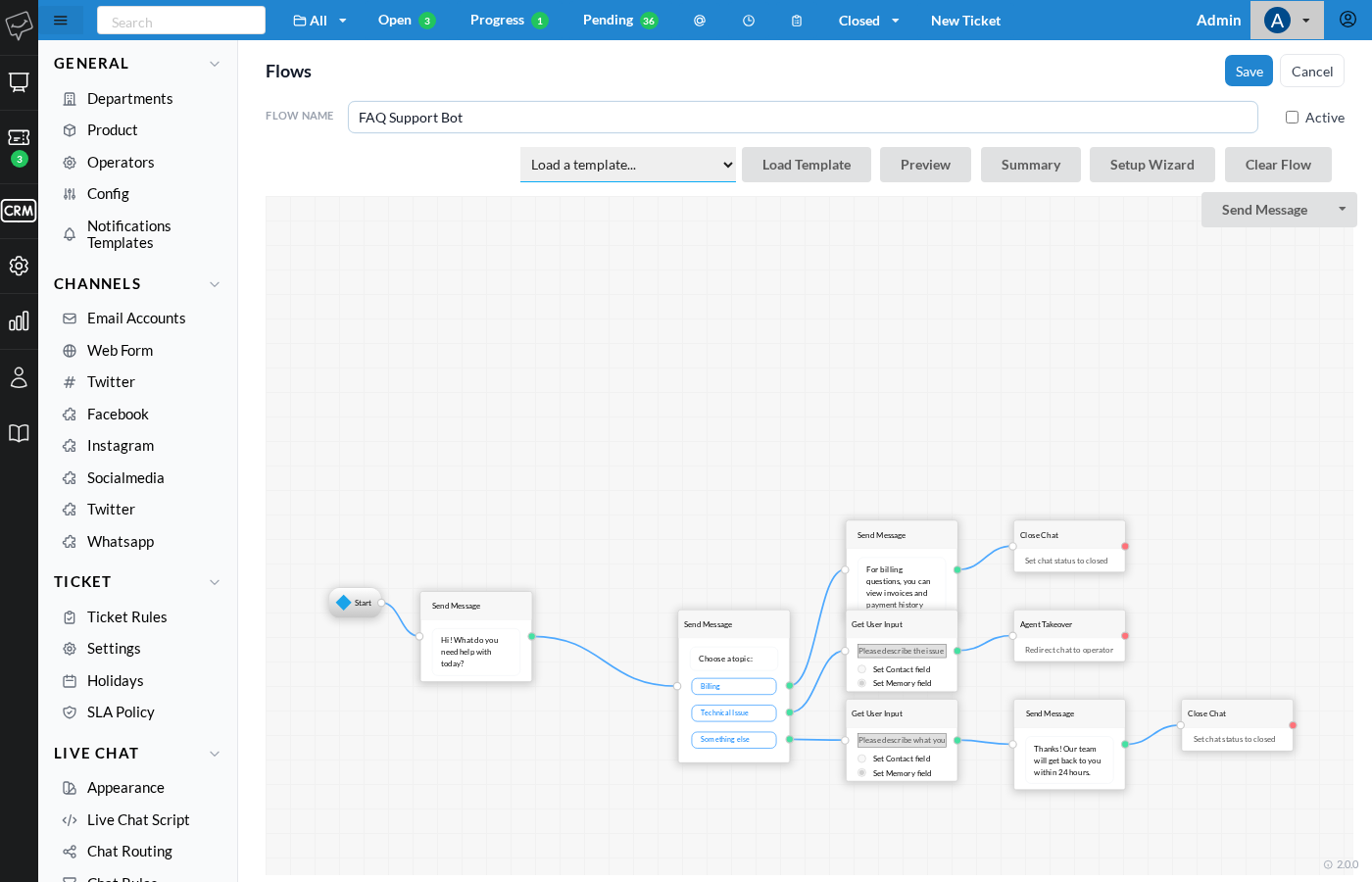
What’s new in this update
The flow builder now does a lot more than send messages and collect answers. Six additions, in particular, change what’s possible:
- Condition – Branch a flow on what the visitor actually typed, not just which button they clicked.
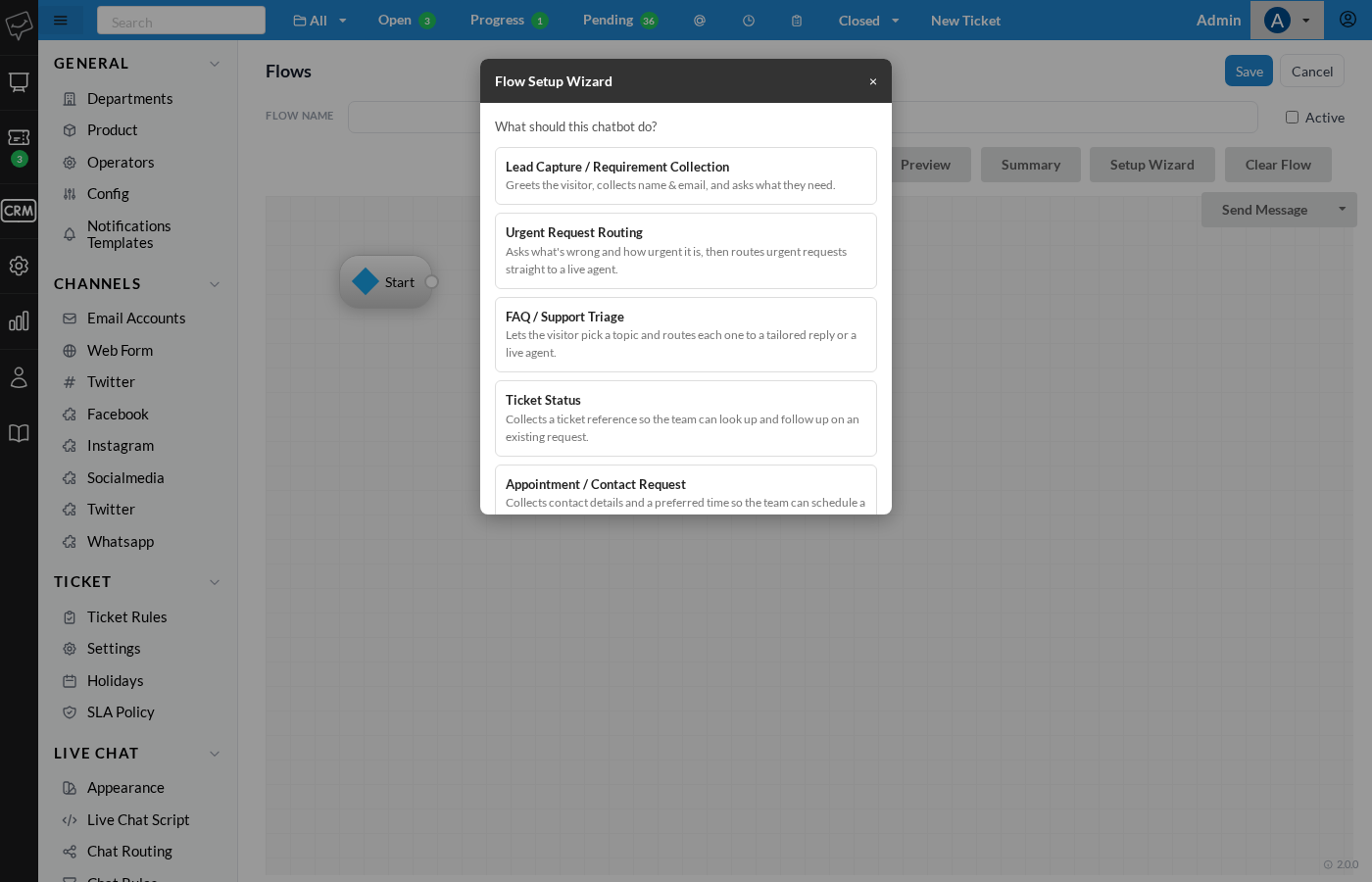
- Templates – Six ready-made flows — lead capture, urgent routing, FAQ triage, and more.
- Setup Wizard – Answer two questions, get a working flow — no canvas required to start.
- Preview – Try a flow as a visitor would, right inside the builder, before saving it.
- Flow Summary – A plain-English readout of the whole conversation, step by step.
- Required & answer type – Mark a question optional, and validate email, phone, number, or date answers.
Getting started
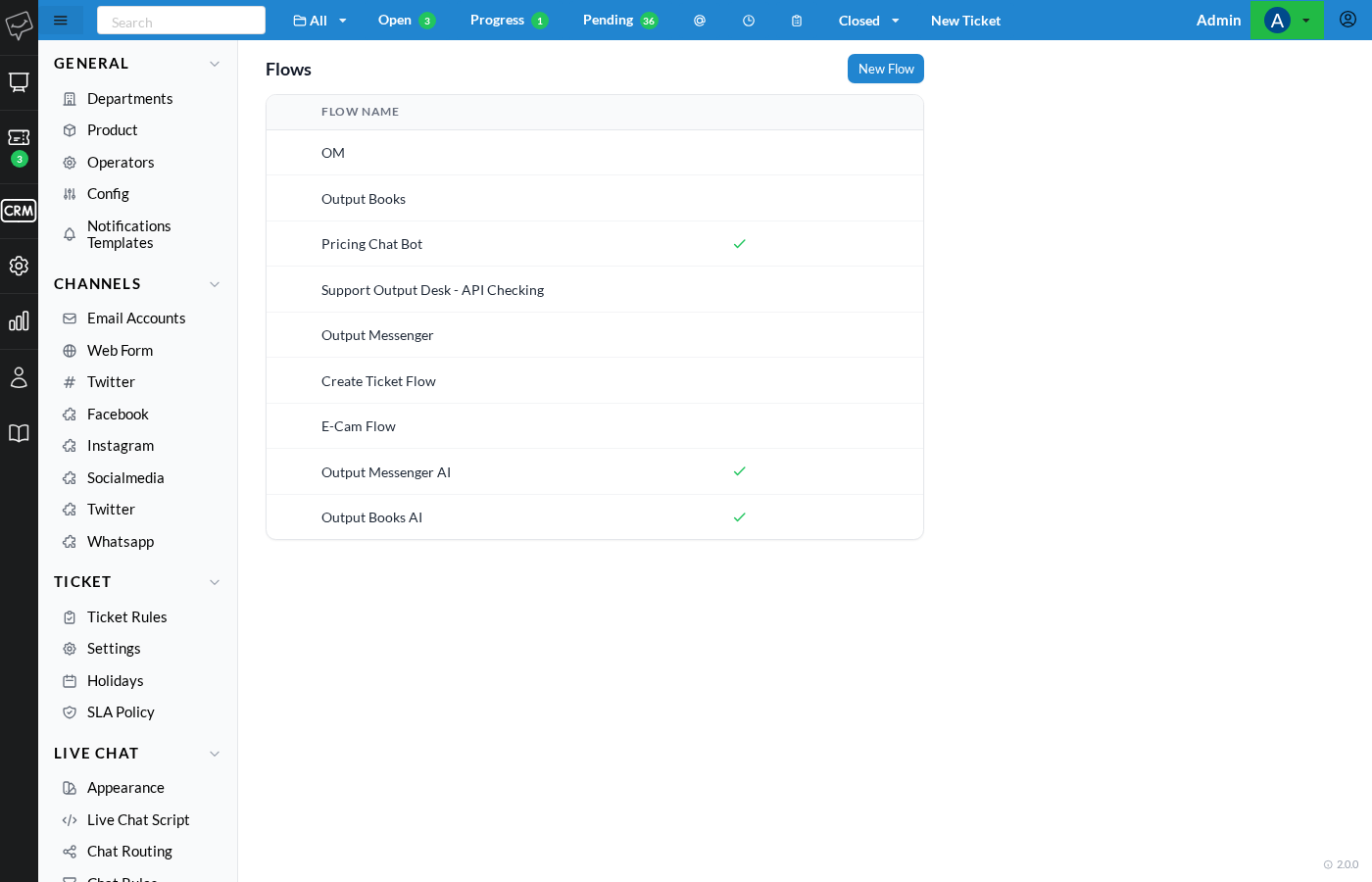
1. Open the flow list
Go to Settings → Live Chat → Flows, then click New Flow.
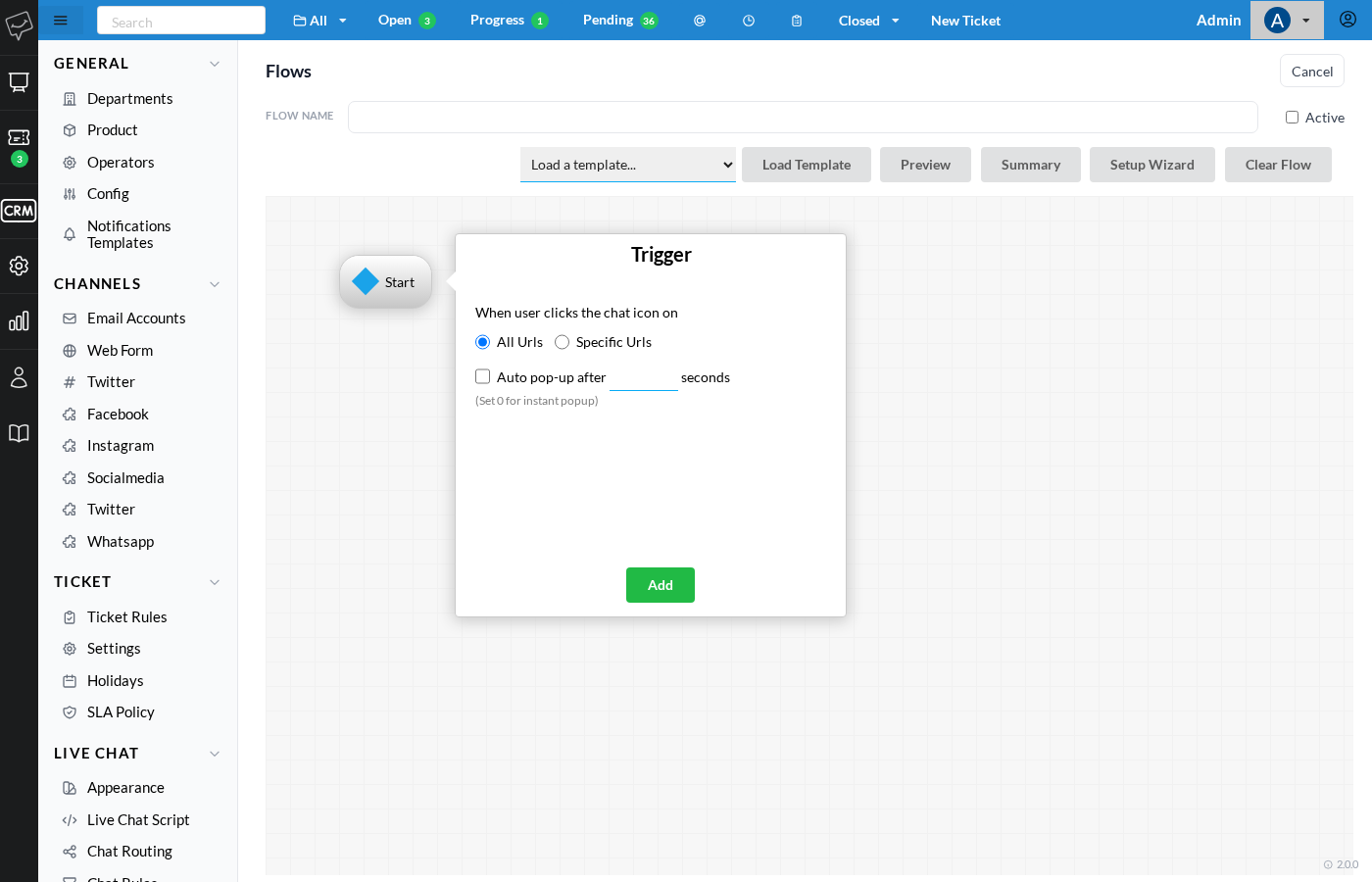
2. Set when it triggers
Every new flow starts by asking when it should greet a visitor — on every page, on specific URLs, or as an automatic pop-up after a delay.
3. Let the Setup Wizard start you off
Once the trigger is set, the Setup Wizard opens automatically with six goals to choose from — pick the one closest to what you need.
4. Adjust the wording, then generate
The wizard offers the one or two things people most often want to change — like the greeting — before building the flow for you.
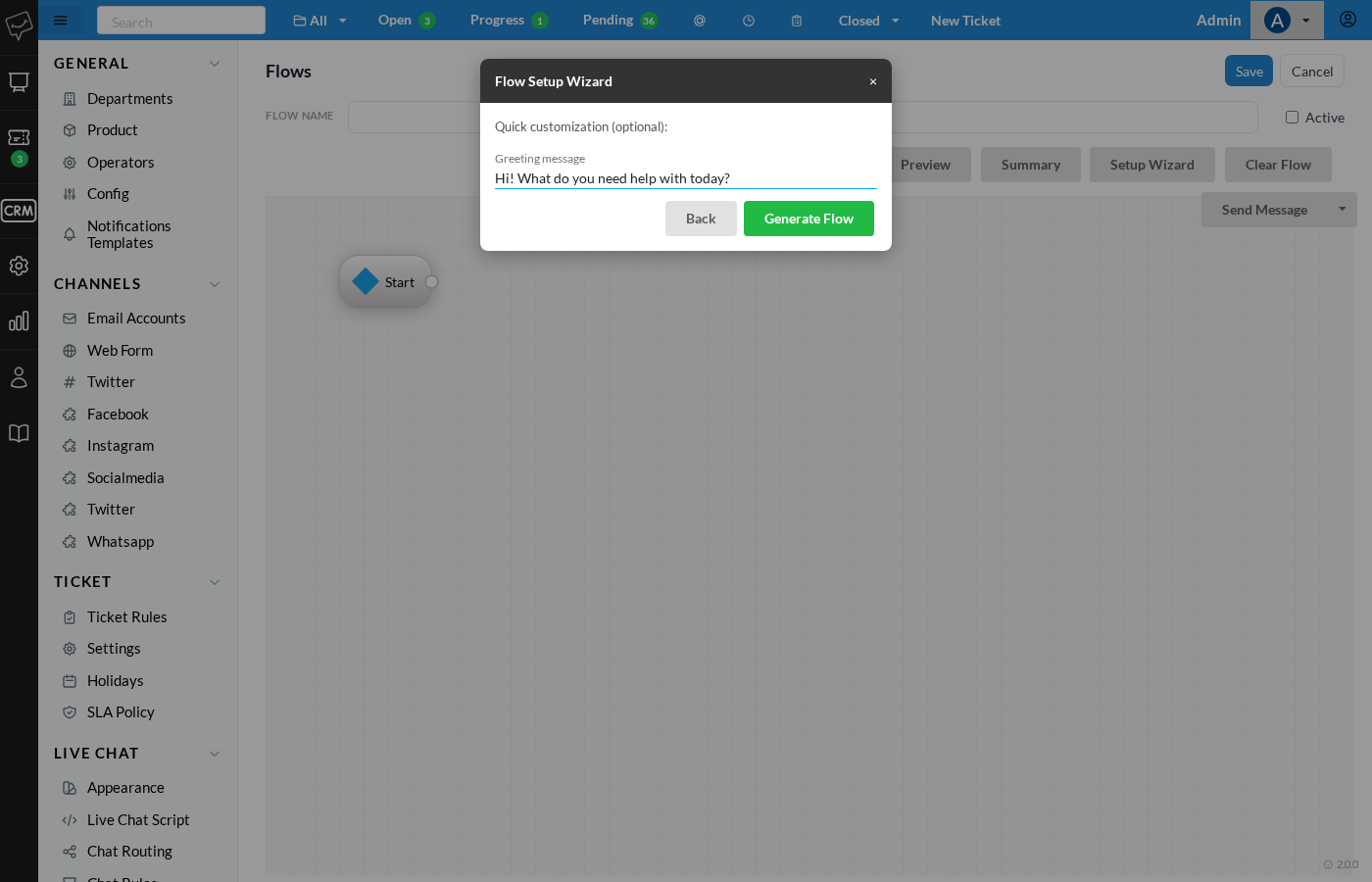
Prefer to start from a blank canvas instead? Close the wizard with the × — it never forces you in.
The Canvas
Every flow is a set of connected boxes. Drag a new one in from the + menu, then drag a line from its output dot to the next box’s input dot. A box can have more than one output — Send Message with options and Condition both branch, one line per possible path.
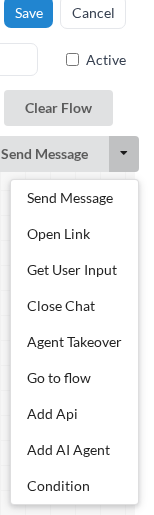
Across the top of the canvas, five tools work on the whole flow rather than one box: Load Template, Preview, Summary, Setup Wizard, and Clear Flow — the last one wipes the canvas back to just the Start box, if you want to begin again.
Node reference
- Start – The entry point every flow already has. Connect its one output to whatever should happen first.
- Send Message – Sends a message, optionally with buttons for the visitor to choose from. Each button is its own branch.
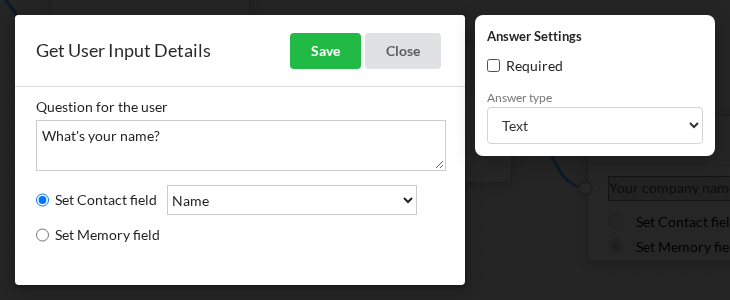
- Get User Input – Asks a question and saves the typed answer to a contact or custom field, with optional validation for text, email, phone, number, or date.
- Condition – Checks a stored answer against a value — or against another stored answer — and sends the conversation down one of two paths. See below.
- Agent Takeover – Hands the conversation to a live operator.
- Add AI Agent – Hands the conversation to your configured AI agent, backed by your knowledge sources.
- Go to flow – Jumps into a different flow entirely.
- Add Api – Calls a configured API and stores its response for use later in the conversation.
- Open Link – Sends a clickable link, built from a URL and any stored answers.
- Close Chat – Ends the conversation.
Collecting an answer
When a Get User Input box is set to save a Contact field, the visitor’s answer is written straight onto their contact record — the same place their name, email, and phone already live. A Memory field instead stays scoped to the conversation, for anything you only need while the flow is running.
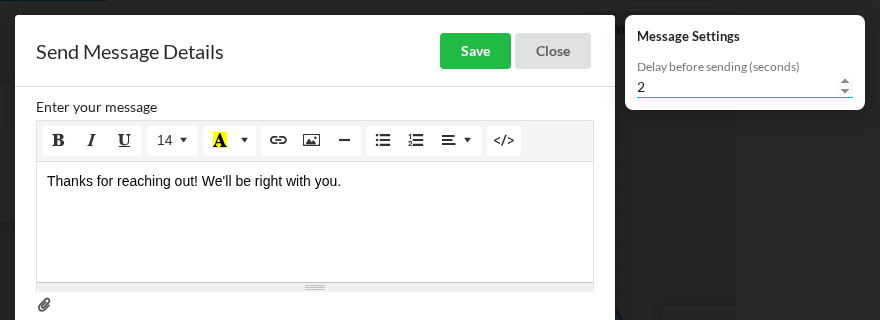
Pacing a Message
A Send Message box can wait before it sends — useful for a short string of messages that shouldn’t all land at once.
Condition, in depth
A Condition box has exactly two outputs — True and False — decided by comparing a stored answer against either a fixed value or another stored answer.
Available operators : Equals, Not equals, Contains, Does not contain, Is empty, Is not empty, Greater than, Less than
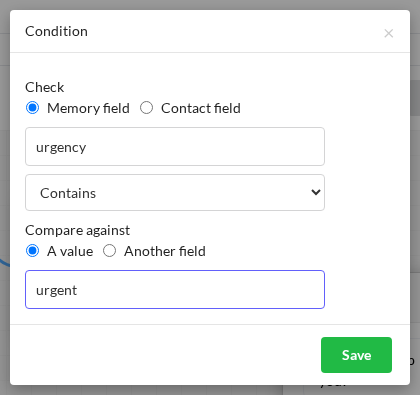
A typical use : ask how urgent a request is, then route anything containing urgent straight to a live agent, and send everything else an auto-reply.
Templates
Six starting points, each a complete flow you can load onto an empty canvas and adjust from there:
Lead Capture : Greets the visitor, collects name and email, asks what they need.
Urgent Request Routing : Asks what’s wrong and how urgent it is, then routes urgent requests to a live agent.
FAQ / Support Triage : Lets the visitor pick a topic and routes each one to a tailored reply or a live agent.
Ticket Status : Collects a ticket reference so your team can look up and follow up on an existing request.
Appointment / Contact Request : Collects contact details and a preferred time so your team can schedule a call.
After-hours : Lets visitors know you’re closed and collects their details for a reply once you’re back.
Note — loading a template only works on an empty canvas (just the Start box). If the flow already has content, you’ll be offered the choice to clear it first — the Start box can only lead to one place at a time.
Preview & Summary
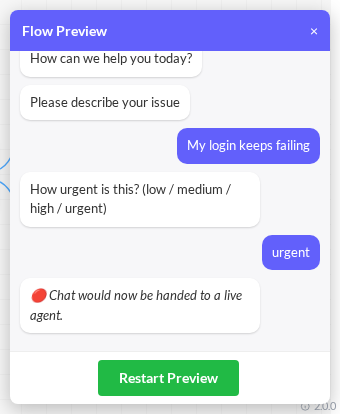
Preview runs the flow exactly as a visitor would experience it — including whatever you’ve built but haven’t saved yet — right inside the builder.
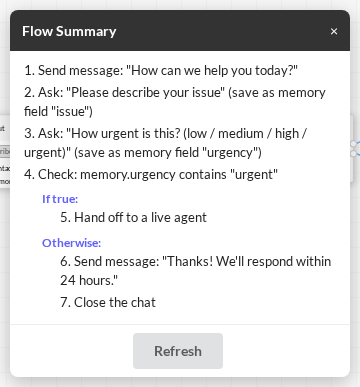
Summary reads the same flow back as a plain-language, numbered list — handy for a quick sanity check without following every line on the canvas.
FAQ
Do I have to use the Setup Wizard?
No — closing it with the × always leaves you on a normal, empty canvas to build by hand.
What’s the difference between the Wizard and Load Template?
They build the exact same flows. Load Template is a one-click shortcut once you know which one you want; the Wizard is a two-step, plain-language version of the same choice, with a couple of common details editable before it generates.
Why didn’t my visitor’s name or email save to their contact?
Make sure the Get User Input box is set to Set Contact field, not Memory field — only Contact-field answers are written to the contact record.
Can a flow loop back on itself?
The canvas won’t stop you wiring a loop, and Flow Summary will call it out rather than getting stuck describing it forever.


